How to use WeMap
Set up a team map, join by invitation, and coordinate with location sharing and chat.
Create a room and invite people
Enter a display name to create a room and open the invite panel. Show the QR code to teammates nearby, or send the link or code in a message.
Join a team room
Open the received link or use your phone’s camera to scan the QR code. If you have a code, enter it on the WeMap homepage. Pick a display name to open the team map and chat.
Share your location
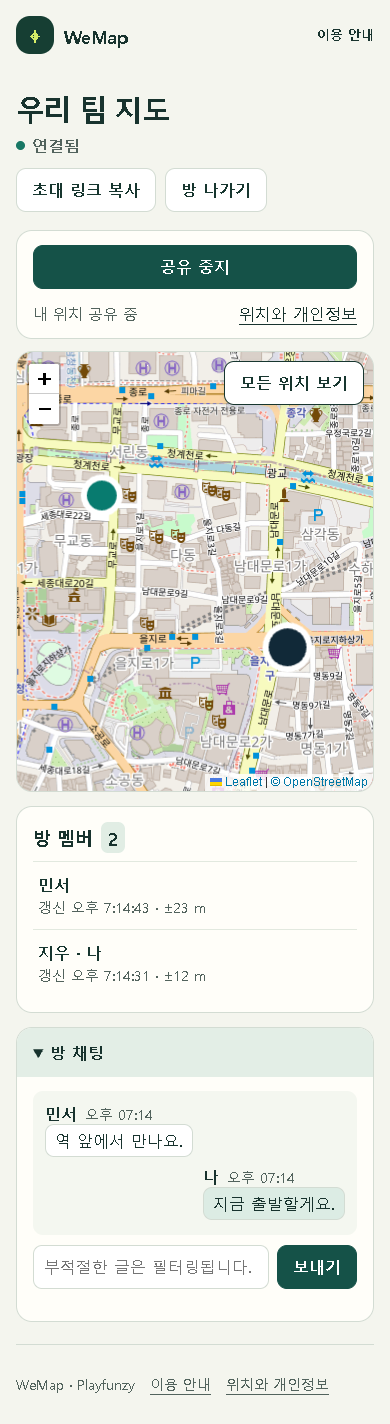
Select Start sharing and allow access in your browser. A connected foreground tab sends your latest position every five seconds.
Use the map and leave
Select a member to highlight their location. You can share a meeting point, show numbers, or add a member label. Disconnecting leaves the last location marked offline; stop sharing to clear your location.
Room chat
You can chat in the room with location sharing turned off.